Showing posts with label ANDROID PHONES. Show all posts

Xperia ST15(mini) / ST17(active) Touch screen Calibration

How to calibrate touchscreen ST15 / ST17 with explanation.
Some Sony / SonyEricsson series ST15 (Xperia mini) or ST17 (Xperia active) possessed the problems that often come out the error touchscreen. Symptoms of various kinds of error, for example: back button / menu button itself is continuously pressed, the phone will vibrate automatically continue, touchscreen difficult to use even barely used, heat up the phone and battery drain.
Now you can fix this problem.

Download all the necessary files:

1. dotNetFx40_Full_x86_x64
2. SEMC Calibration driver
3. Touch panel calibration 1.0.0.3
4. Instalation guide for SEMC calibration driver.pdf
You need SETool box to flash the phone.

Before performing calibration make sure the battery is fully charged and the existing data on your phone will be lost because we can not do the backup could not be used due to the touchscreen.

Steps to perform the calibration as follows:
1. Extract all files, install the file number 1 that have been downloaded
2. Flash phone (ST15 / ST17) with ETS software with Setool
3. Unplug the cable from the phone, remove and reinsert the battery
4. Press the power button until the phone vibrates, the phone display will be blank, wait 10 seconds
5. Run software "Touch panel calibrtation 1.0.0.3.exe
6. Connect the phone to the USB port with the installed driver (follow file number 4)
7. Click start calibration, if pass flash the phone with SeTool or flashtool with good firmware.

Do not touch the touch screen during the calibration process, After flashing is complete, turn on the phone, to make sure the phone is normal, do a self-test by pressing * # * # 7378423 # * # *
Good Luck.
read more...

HTC Desire Android SIM-Unlock | how to? |

Easy ways to do the SIM-Unlock on HTC Desire (Android) there are 2 methods that I know, namely:
1. Boot from CD
2. Boot from USB (PenDrive / FlashDisk) course for the laptop supports booting from USB.

For the first method, the following steps:
1. Download the ISO file below, and burn to CD (this is freeware)
HTC-Desire-unlock_v0.2a.iso

2. Boot the computer with the CD
3. Power up your phone into HBOOT by pressing both Vol-Down and Power buttons
4. Connect the device to the computer and then press ENTER
5. follow the instructions

For the second method, the following steps:
1. Download Multiboot ISO, HERE
2. FlashDisk Plug into your computer, then format
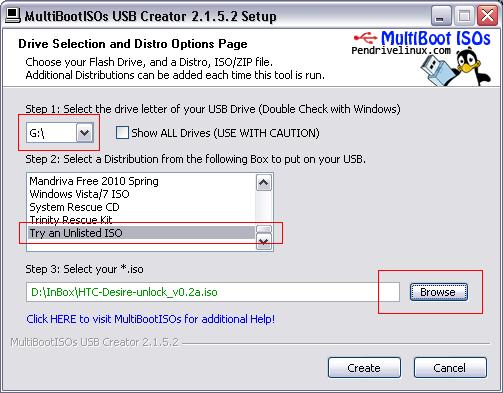
3. Run Multiboot ISO, and adjust the flash drive as the drive in your computer
4. follow the instructions as shown below marked with red boxes mark, then click "create"


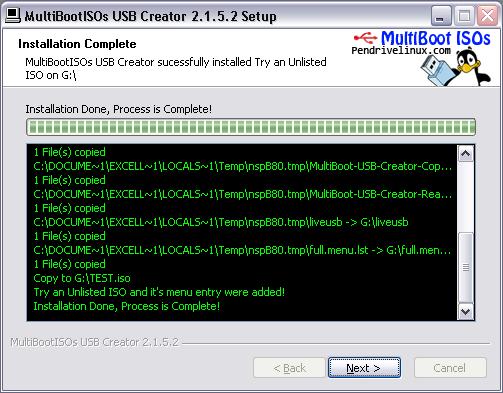
5. after appearing as shown below, click "next"


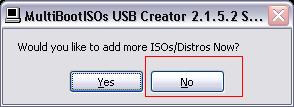
6. last click "no"

After that please boot your computer from USB, and Ulock ready made.

Note: The app does not require root or s-off and Should work on any hboot and radio version. (It has been tested so far with HBOOT up to 0.93.1000 and up-to-RADIO 5.14.05.17).
It's based on Some vulnerabilities and undocumented features, so disclosing Them Would mean the Greater the chance of Them being corrected.
I've only tested it on Desire GSM and I do not recommend using it on CDMA devices; doing Otherwise Could lead to unpredictable results.

credited to: forum.xda-developers.com
read more...

How to Root your Android Phone safely and easily

      Is Rooting on Android Phone make the warranty void? Yes....because Rooting on an Android Phone is the process of modifying the Operating System on your device to grant you complete control over it.
      But you do not need to worry because with the UniversalAndRoot App, rooting becomes a simple task that any person can do. Which makes the warranty void is to unlock the bootloader, because some tutorials suggest to do it as a rooting procedure.
      With UniversalAndRoot App you do not need to unlock it, and the best thing is, You can even Unroot your phone and get it back to the original state. So it's safe and easy.
      Why do I need to Root my Android Phone, what are the benefits?
Root doesn't unlock your phone for other carriers. It gives you super user access aka SU. It will allow you to flash custom ROMs and themes. Some apps require root to work properly. And also you will get :
1. Full control over your system
2. Ability to alter system files. You can replace many parts of the "Android Core" with this including:
    ^ Themes
    ^ Core apps (maps, calendar, clock etc)
    ^ Recovery image
    ^ Bootloader
    ^ Toolbox (linux binary that lets you execute simple linux commands like "ls") can be replaced with Busybox (slightly better option)
    ^ Boot images
    ^ Add linux binaries
3. Run special apps that need more control over the system
    ^ SuperUser (lets you approve or deny the use of root access to any program)
    ^ Task Manager For Root (Lets you kill apps that you otherwise could not kill)
    ^ Tether apps (like the one found at android-wifi-tether.googlecode.com)
    ^ And many more
4. Backup your system
    ^ You can make a folder on your sdcard and backup all of your (.apk) files to your sdcard (helps if an author decides to "upgrade" you to a version that requires you to pay to use the version you just had)
5. Relocate your (browser/maps/market) cache to your /sdcard
6. Relocate your installed applications to your /sdcard
7. Reboot your phone from the terminal app easily (su reboot )

This application can only work on mobile phones below (for now):


* Google Nexus One (running 2.2)
* HTC Hero (2.1)
* HTC Magic (1.5)
* Dell Streak (2.1)
* Motorola Milestone (2.1)
* Motorola XT701
* Motorola XT800 (2.1)
* Motorola ME511
* Sony Ericsson X10 (1.6)
* Sony Ericsson X10 Mini Pro (1.6)
* Acer Liquid (2.1)
* Vibo A688 (1.6)
* LG1 1.6
* Mytouch 3G Slide
* LG Ally
* HTC Tattoo
* More to come
      Download the latest version of UniversalAndRoot App, and install it on your device. Make sure your phone is supported by the application or it will brick your phone, and then follow steps below :
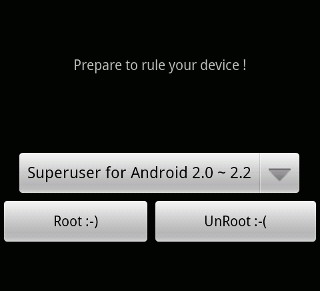
1. Open application
2. In the dropdown menu, select your current Android version.
3. Tap on the Root button. Wait for about 5 seconds until all status are (OK).
4. Your phone is now rooted.
To Unroot select "UnRoot" button.
read more...

Hard Reset X10 Mini Sony Ericsson


        Xperia X10 Mini is one of several Android Phones from Sony Ericsson brand. To perform a Hard Reset on this device is just a simple steps.
        You better to back up all important data first, cause it will be erased and also the settings will be return to the factory settings. Don't forget to make sure that the battre power is full.
        The hard reset usualy doing if we have software problem on that device, to perform it follow the steps below :

1. Turn the phone off
2. Press the POWER button
3. Press and hold home key aprox 3 seconds
4. The hard reset is starting.


read more...

Hard Reset Nexus One Android Phones

        To perform a Hard Reset On droid "Nexus One" , you must backup all important data that stored in the device first, cause it will be erased and also the settings will be return to the factory settings.
        Don't forget to make sure that the battre power is full. If you sure all ok to perform hard reset, follow the instructions below :

1. Turn the phone off.
2. Hold the Volume Down button and press and release the Power button.
3. Phone will boot into menu with pictures skateboard guys.
4. Select Clear Storage from the list by pressing the Volume Down button.
5. Press the Power button, and confirm by pressing Volume Up.
6. Phone will be reboot and finish.


read more...

Hard Reset LG GW-620 (EVE) Android Phones

        Android Phones LG GW-620 is also called "EVE" have some combination keys to perform a Hard Reset on this device. Like the others phones hard reset will be erasing all user data that stored in the device and also returning the settings to the factory settings.
        So it's highly recomended to backup the important data and make sure the battre power is full to prevent the further damage.
To perform hard reset, just press "3845#*620#" with dial pad. On screen will appear option menu after press that combination keys, select factory reset to perform it and follow the instruction.


read more...

Hard Reset TMobile MyTouch (SAPP300)

        TMobile MyTouch (SAPP300) is an Android Phones with full touch screen, no hard qwerty keyboard available. You may perform a Hard Reset if you have a software error on that device.
        Performing hard reset will be erase all user data and also returning the settings to the factory settings.
        It's highly recomended to back up the important data first, and make sure the battre power is full.

To perform a hard reset follow the steps below :

1. Turn the phone off.
2. Press and hold HOME and POWER buttons (keep holding both of buttons for at least 25 seconds even if the startup screen appears).
3. Release both of buttons when the black screen with a warning sign appears
4. At the condition warning sign screen, press the HOME and POWER buttons again simultaneously aproximately 10 seconds and then let the process running.
5. Use the trackball to scroll to "wipe data/factory reset" then press the trackball.
6. Wait until "Data Wipe Completed" text displayed then scrol the trackball to "reboot System Now" and press it.
        Device will be reboot and hard reset is completed.


read more...

Hard Reset Motorola Dext Android Phones

        Motorola Dext is an Android Phones from Motorola brand. If you have some software problem on that device you can perform a Hard Reset. It's only a software error not a hardware error.
        All user data will be erased and all settings will return to the factory settings, it's highly recomended to back up all important data first, and also make sure the battre power is full.

To perform a hard reset follow the step below :

1. Holding the Camera button while turning on your phone,
2. When prompted hit the Volume-Down rocker button to go into Recovery Mode.
3. After you get into Recovery Mode,
4. Press ALT+L to reset, then Menu+Back to reboot.


read more...

Hard Reset Motorola CLIQ XT (MB501) Android Phones

        Performing a Hard Reset on CLIQ XT , all user data that stored in the device will be erased and will be lose.
        It's highly recomended to back up all important data first, and also make sure the batrre power is full.

To performing hard reset follow the steps below :

1. Turn the phone off.
2. Press and hold the Power and Camera buttons
3. Release the Camera button when prompted
4. Press and hold the Volume Down key
5. A yellow exclamation will appear on the display. Wait until a menu with options will appear.
6. Using the touch screen select Factory Reset and press OK


read more...

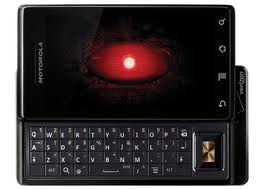
Hard Reset Motorola Milestone

        Motorola Android Phones like picture beside is also called "MILESTONE", if you have software problem on that device you can performing Hard Reset or soft reset by your self.
        All user data will be lose and also it will be return to factory settings. It's highly recomended to back up all important data first.

To performing a soft reset on Motrola Droid : touch Menu > Settings > Privacy > Factory data reset > Reset phone.

To performing a hard reset on Motorola Droid follow the steps below :
1. Turn the phone off (make sure the battre power is full).
2. Press and hold CAMERA + POWER buttons aproximately 12 seconds, you will see Motorola logo and a yellow exclamation point in a white triangle.
3. When you see exclamation point, press VOLUME UP then CAMERA buttons You will see Android system recovery menu.
4. Select Wipe / Factory Reset with volume down button or with "Dpad" then press power button or center "Dpad" to hard reset


read more...

Hard Reset HTC Tattoo Android Phones

        To Hard Reset the HTC Tattoo is almost the same as the other HTC Android Phones. All user data in the device will be lose, and also all settings will be return to factory settings. So back up all important data first before performing it.
        Performing a hard reset on all device, you must make sure that the battre power is full, and turn the phone off first, than follow the steps below :

1. With the phone turned off, press and hold the HOME and BACK then briefly press the END CALL/POWER button.
2. Press the ENTER button to begin the reset process.

Tips : If your phone hangs or freezes, remove the battery then wait for 20 seconds, and then re-install it. After re-installing the battery, turn on the phone.


read more...

Hard Reset HTC Magic Android Phones

        HTC Magic is one of several Android Phones from HTC brand. If you have a software error you can performing a Hard Reset first before you take a step to reflashing it.
        With performing a hard reset will deletes all user data, including downloaded applications, and resets the device back to its initial state, the state before you turned on the device for the first time.
        It's important to Make sure to back up important data you have on the device before you perform a factory data reset, and also make sure that the battre power is full.

Turn the phone off first, and follow the steps below :

1. With the phone turned off, press and hold the HOME and BACK buttons
2. Briefly press the END CALL/POWER button while continuing to press HOME and BACK buttons.
3. When you see the screen with the 3 Android images, release the HOME and BACK buttons, and then press the TRACKBALL.

Tips : If your phone hangs or freezes, remove the battery then wait for 20 seconds, and then re-install it. After re-installing the battery, turn on the phone.


read more...

Hard Reset HTC Hero Android Phones

        To perform a Hard Reset on HTC Hero that have Android operating systems is relatvely easy, you can perform it if the phone in software error not hardware.
        If the hard reset can't fix your phone it's means that you need to flash it or may be hardware trouble. Follow the instructions below if you want to do it :

1. Turn the phone off, press and hold the HOME and BACK buttons then briefly press the END CALL/POWER button. The reset process will start after a few seconds.
2. Wait for the phone to finish the reset process and then press MENU.

Tips : If your phone hangs or freezes, remove the battery then wait for 20 seconds, and then re-install it. After re-installing the battery, turn on the phone.


read more...

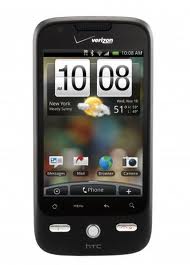
Hard Reset HTC Droid Eris

        Perform a Hard Reset on your HTC Droid Eris will clear all data and settings off the device. You must back up your important data first. Make sure the battre power is full and follow the steps below :
1. Turn the phone off, then press and hold the Volume Down and Send buttons.
2. Press the Power button.
3. Follow the instructions to complete the hard reset.

Tips : If your phone hangs or freezes, remove the battery then wait for 20 seconds, and then re-install it. After re-installing the battery, turn on the phone.


read more...

Hard Reset HTC Dream Android Phones

HTC Dream is a kind of Android Phones from HTC brand. If you have a software error on this phone, u can take the first step to fix it, that is Hard Reset. It's safer than flashing, cause the phone will reset and erase all user data by itself not by computer. To hard reset HTC Dream follow the steps below :

1. Turn the phone off. If it’s frozen on, take the battery out and put it back in the unit.
2. Make sure the battre power is full
3. Hold the Home and Power keys down at same time for about 25 seconds. You will see a yellow triangle screen with exclamation point in the
middle.

Now to wipe the device clean:

4. Press Alt+L.
5. Press Alt+W for a factory reset.
6. Press the Home and Back keys again for about 25 seconds.
The device should then reset again and the hard reset is complete.


read more...

Hard Reset HTC Desire Android Phones

        Performing a Hard Reset on this device is a way to restore the factory setting and also all user data wil be lose. We have must to back up all important data first, make sure the battre power is full. Power off your phone and go to the step below :

1. press and hold back & home buttons
2. press for a second power button
3. now a white screen will appear with 4 options
use volume buttons to make a choice
and power button to confirm a choice

tips : If your phone hangs or freezes, remove the battery then wait for 20 seconds, and then re-install it. After re-installing the battery, turn on the phone.


read more...